Chat Features
- All conversations are linked to a specific listing — you always know which bird you're discussing
- Send text messages and photos
- Reply to a message — tap the reply arrow next to any message to reply directly to it. Long-press also works. The quoted message appears above your reply so the conversation stays organized
- Real-time typing indicators show when the other person is composing a message
- Read receipts — see when your message has been read
- In-app notification banner — a banner appears at the top of the screen when you receive a message while using the app
- Push notifications for new messages even when the app is closed
- Unread count badge on the Messages tab — updates instantly when a new message arrives
- Auto-reconnects if your internet drops temporarily
Starting a Conversation
- Open any listing and tap Message Seller
- Or go to a seller's profile and tap the message icon
- Or long-press a listing card in the feed and tap Is this still available? — this opens a chat with the seller instantly
- Your conversation appears in the Messages tab
Safety Warnings in Chat
The app automatically protects you while chatting:
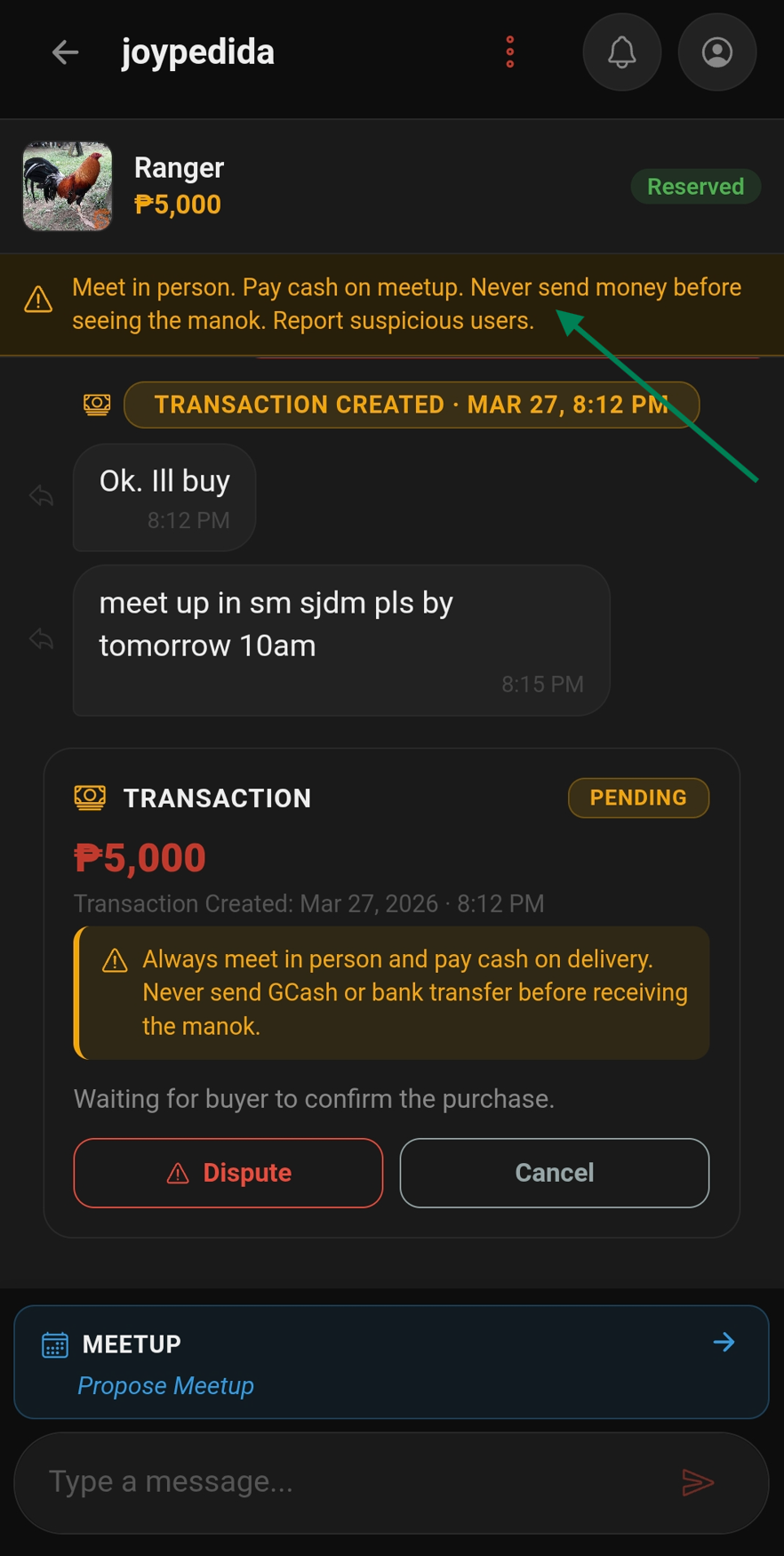
- Payment keyword detection — if someone mentions GCash, bank transfer, or advance payment, a warning appears reminding you to pay cash on meetup only
- External app detection — if someone shares phone numbers, Viber, Telegram, Messenger, or Facebook links, a warning appears reminding you to keep deals inside the app
- A safety reminder is pinned at the top of every conversation
Counter-Offer
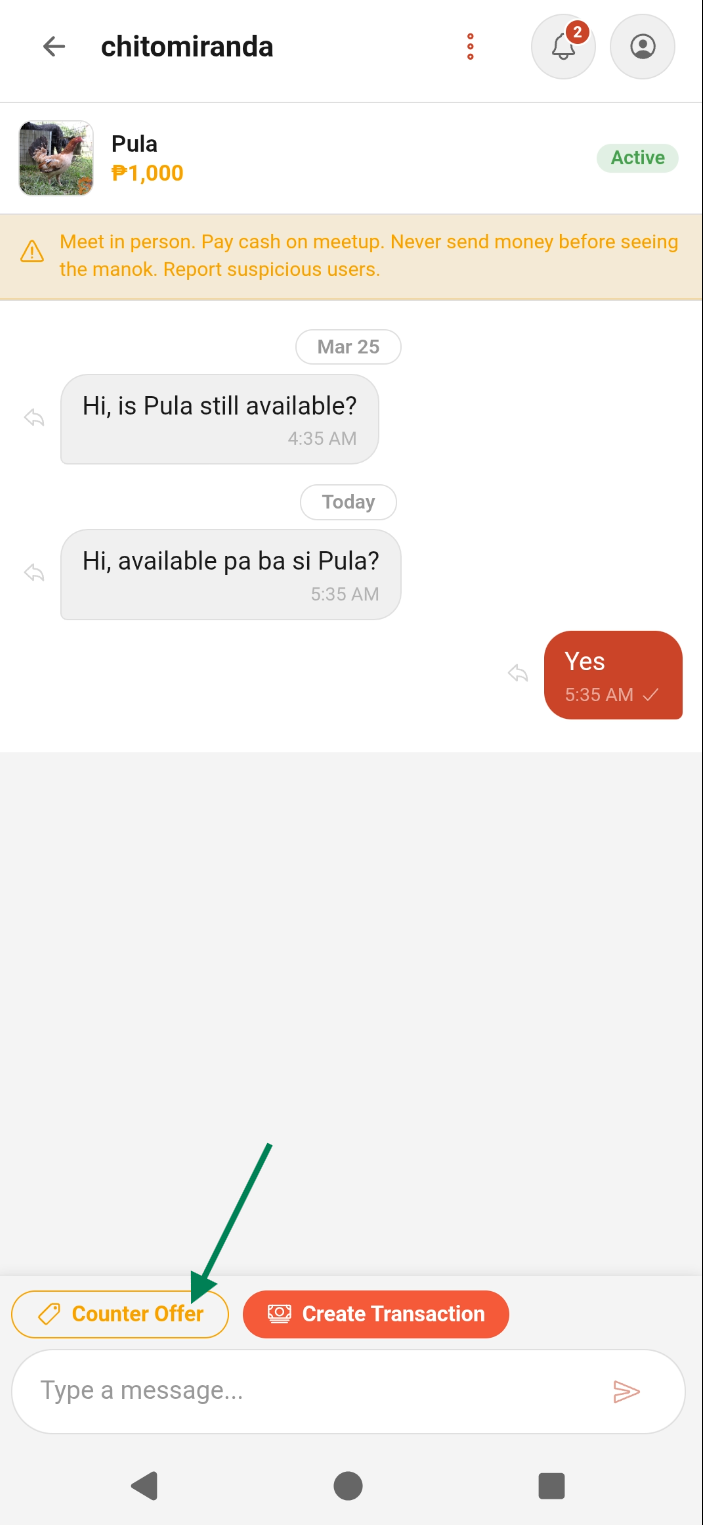
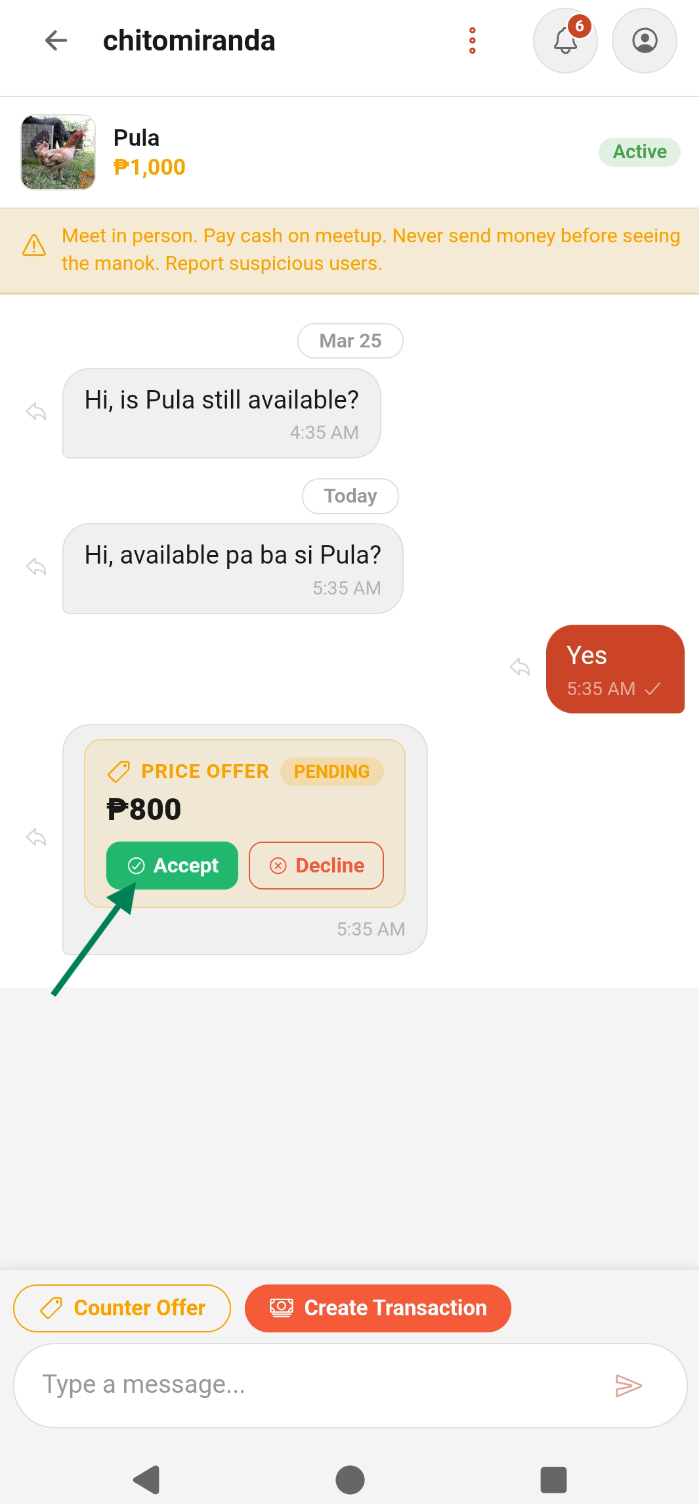
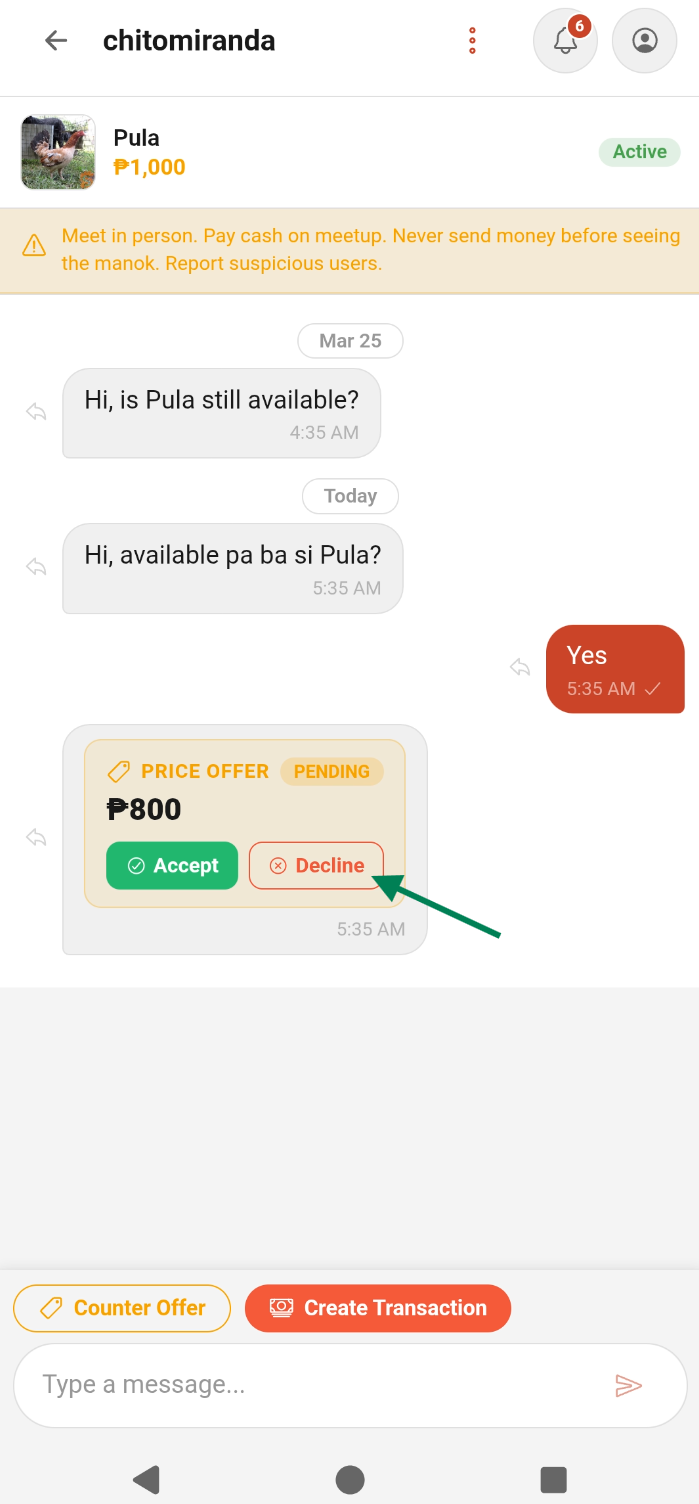
Both buyer and seller can send price offers directly in chat. When the seller sends an offer, it's labeled as a Counter Offer in the conversation. Tap Accept or Decline on the offer card.
Scheduling a Meetup
The meetup scheduling button is available once a transaction has been created and is in Pending status.
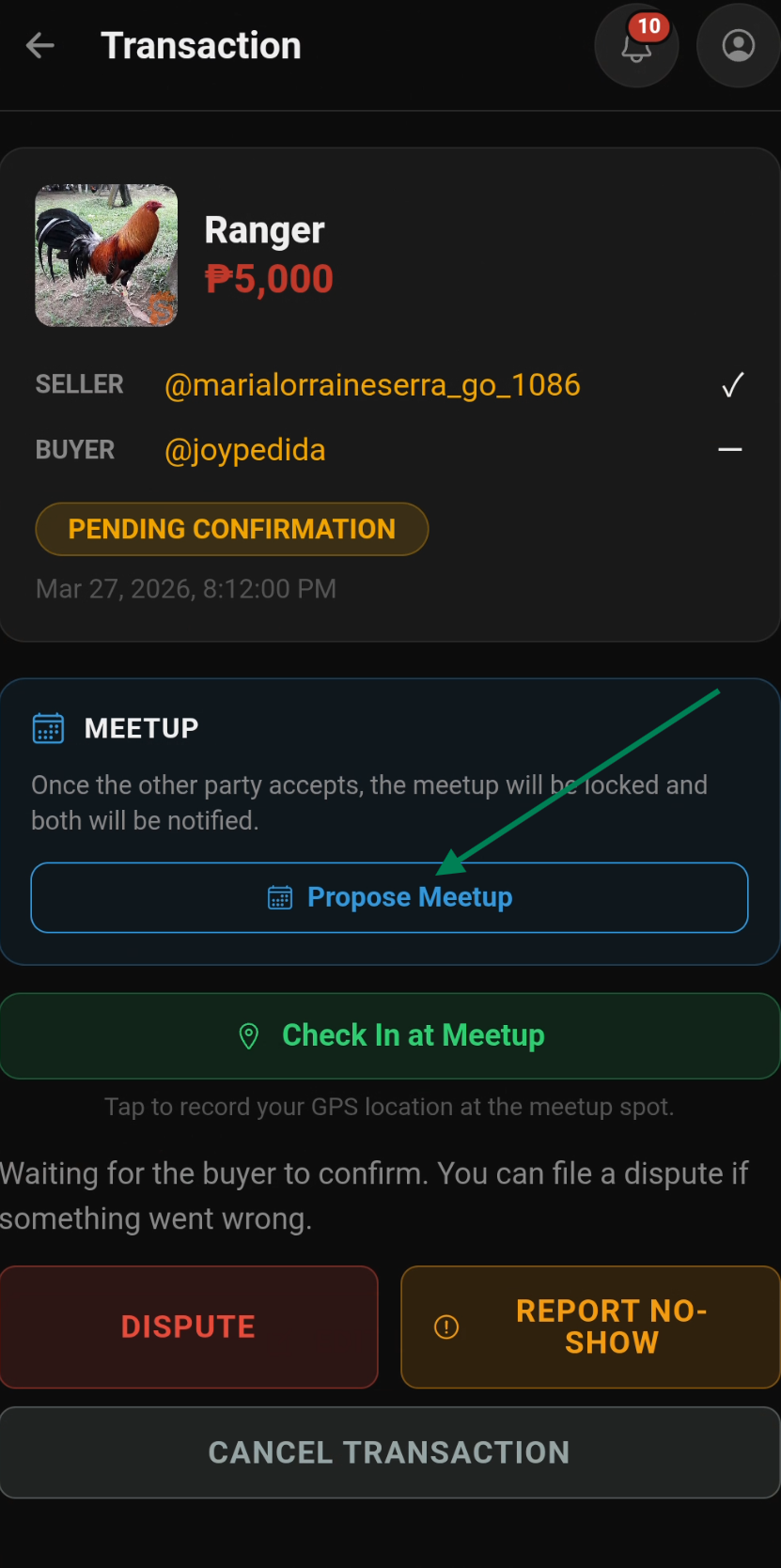
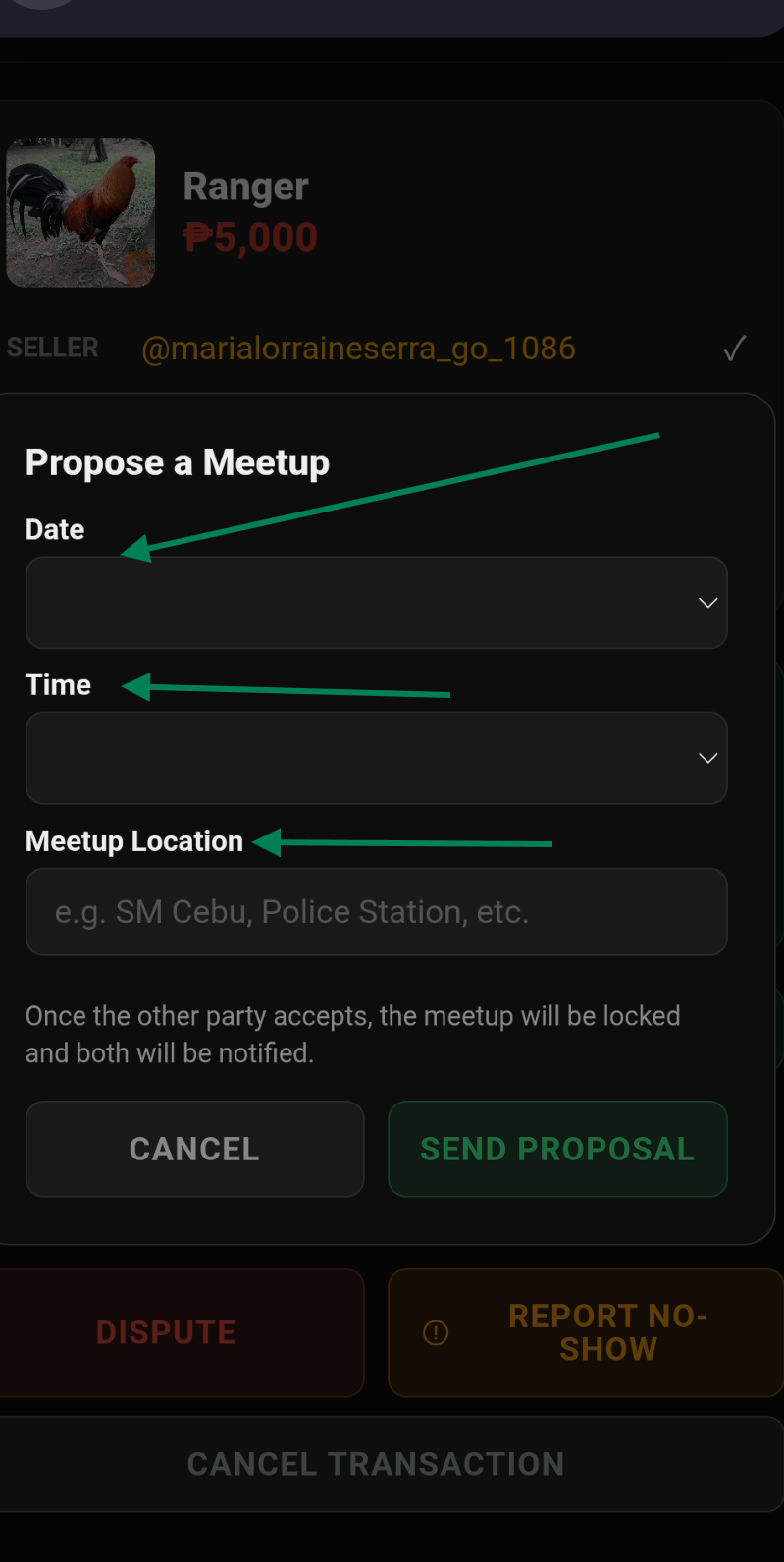
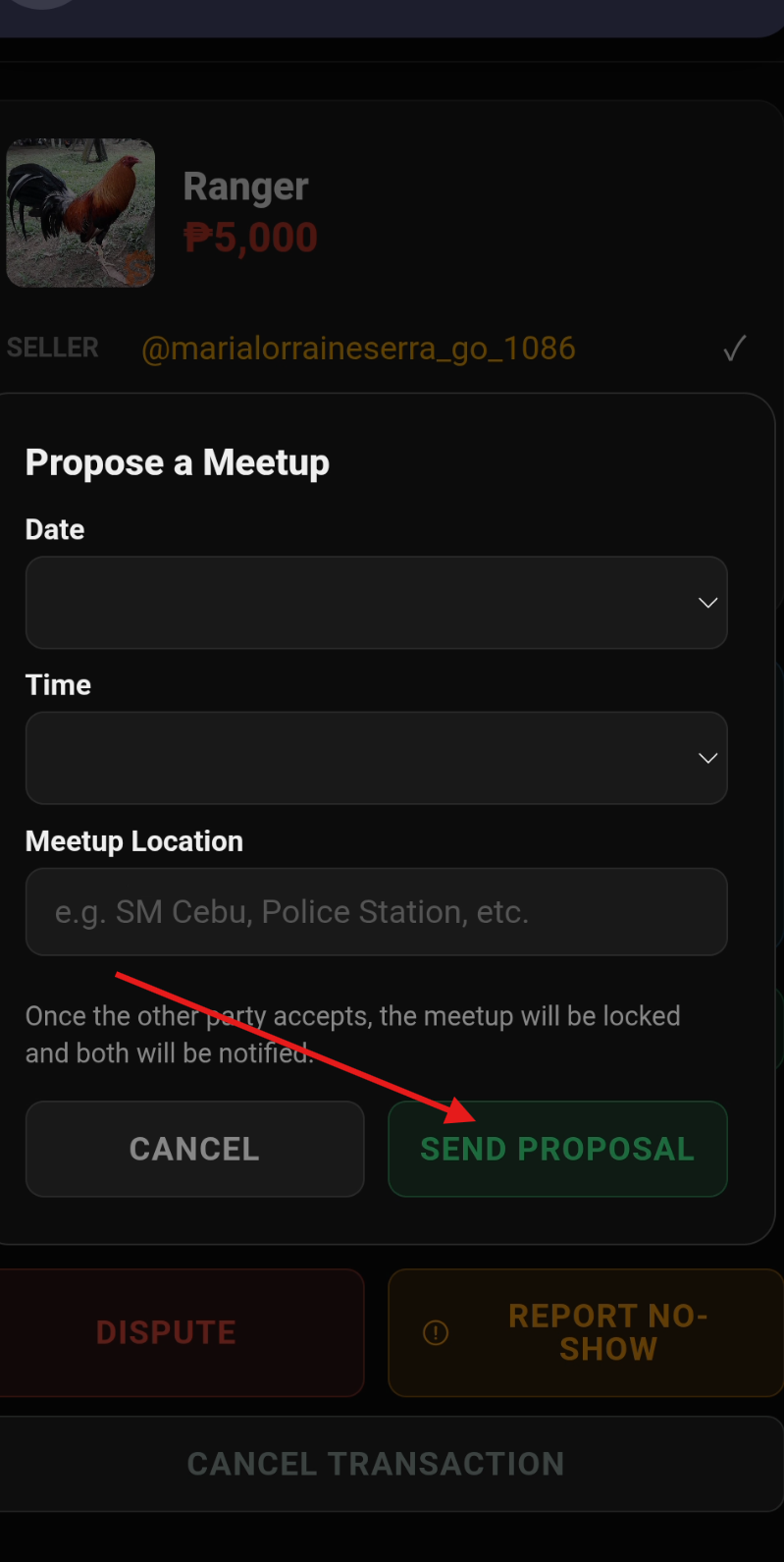
- In the conversation, tap the calendar icon (visible when a pending transaction exists)
- Pick a date, time, and location for the meetup
- A meetup card appears in the chat with the proposed details
- The other party taps Accept or Decline directly on the card
- Both parties receive a push notification when a meetup is proposed or responded to
Creating a Transaction from Chat
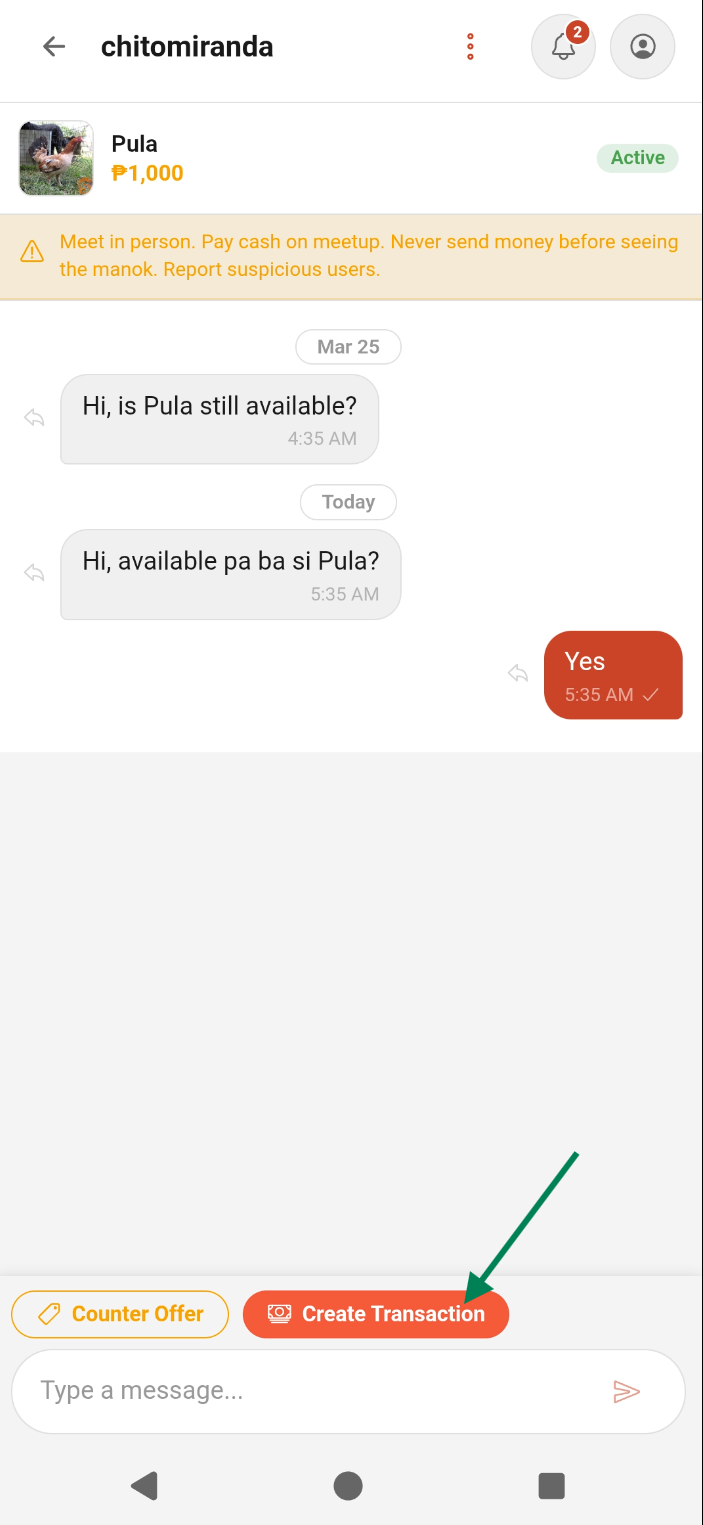
Once you and the seller agree on a deal, the seller can create a transaction directly from the conversation:
- The seller taps the red Create Transaction button visible in the chat footer (next to the Make Offer button)
- A confirmation popup shows the agreed price — the seller confirms
- A guide popup appears explaining the next steps: arrange meetup → meet in person → both confirm in app
- The buyer receives a push notification that a transaction has been created
- A Transaction in Progress banner appears at the top of the conversation for both parties
Transaction Banner in Chat
Once a transaction is created, a red Transaction in Progress banner appears at the top of the conversation showing the current status. Tap it to go directly to the transaction detail page. The banner disappears once the transaction is completed or cancelled.
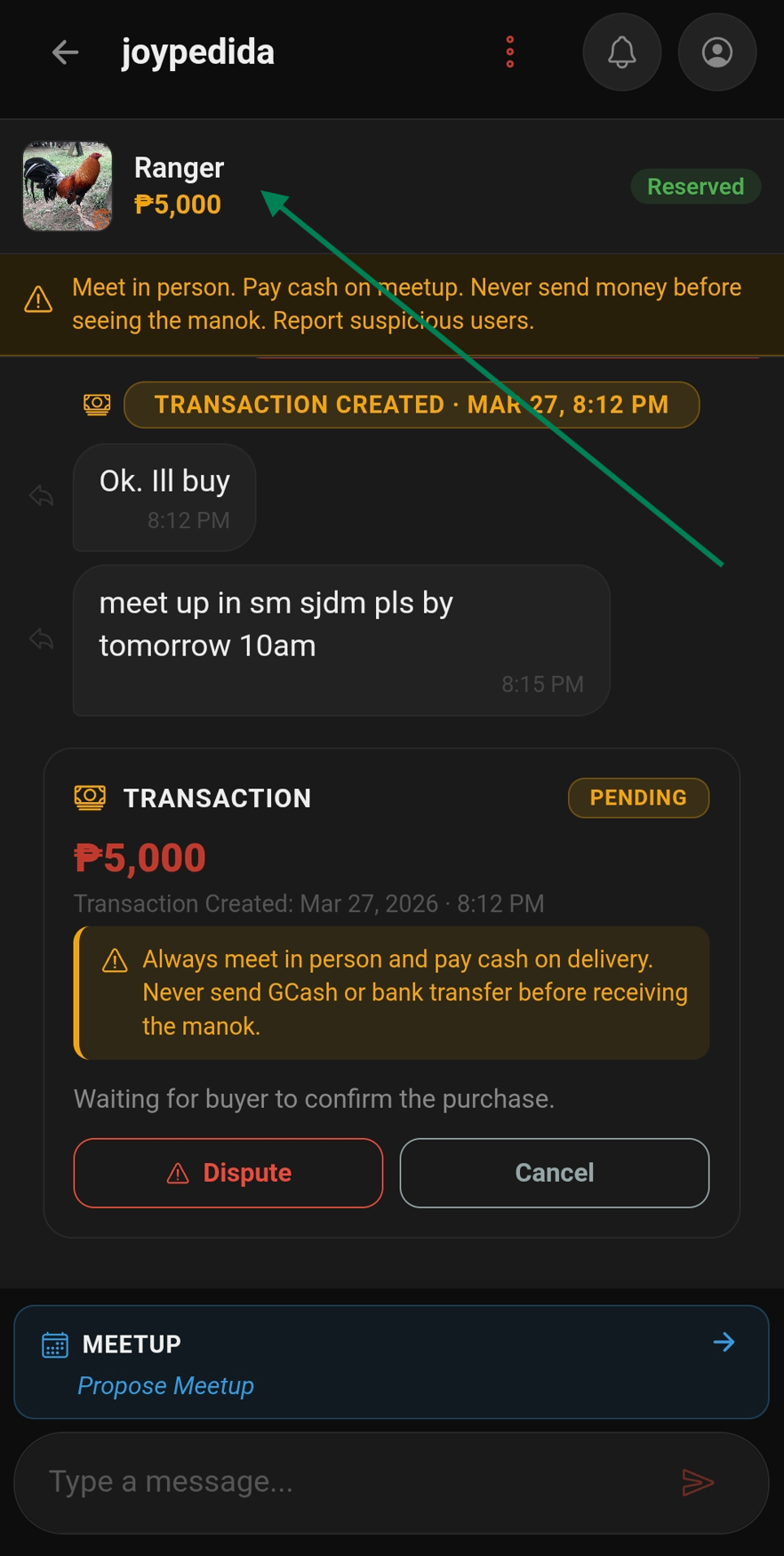
Meetup Scheduling from Chat
After a transaction is created, you can propose a meetup directly from the conversation:
- Tap the calendar icon in the sticky meetup bar at the bottom of the chat
- Pick a date, time, and location
- A meetup proposal card appears in the chat
- After sending, a guide popup reminds you of the next steps
- The other party taps Accept or Decline on the card
- Both parties receive a push notification when a meetup is proposed or accepted